Connect Claude or another AI assistant to your to-do list with MCP
On the Mac, open Alcove's settings, go to MCP and turn on the local MCP server. Copy MCP config gives you a snippet to add to your assistant app, such as Claude. The first time the assistant connects it waits for your approval, you choose whether it may read, create, update or delete, and every request appears in an activity log.
Sometimes I'd rather say what I need than click through it. "Move everything tagged #finance to next week." "What's left on the launch board?" With the Model Context Protocol, an AI assistant can do that kind of thing with your real tasks, as long as you've said it may.
What is MCP?
The Model Context Protocol (MCP) is an open standard that lets AI assistant apps use tools provided by other apps. Alcove's Mac app includes a small MCP server. When it's on, an assistant you've approved can call Alcove's tools, such as list_tasks, create_task, update_task, complete_task and create_note, to work with your lists, tags and notes. There are 29 tools in all, each marked with the permission it needs.
How do you connect an assistant to Alcove?
- Open Alcove ▸ Settings on the Mac and choose MCP.
- Turn on Local MCP server. It's off until you turn it on.
- Click Copy MCP config and add the snippet to your assistant app's MCP settings.
- Ask the assistant something about your tasks. The first time it connects, Alcove shows it as waiting and asks for your approval.
- Approve it, and choose what it may do.
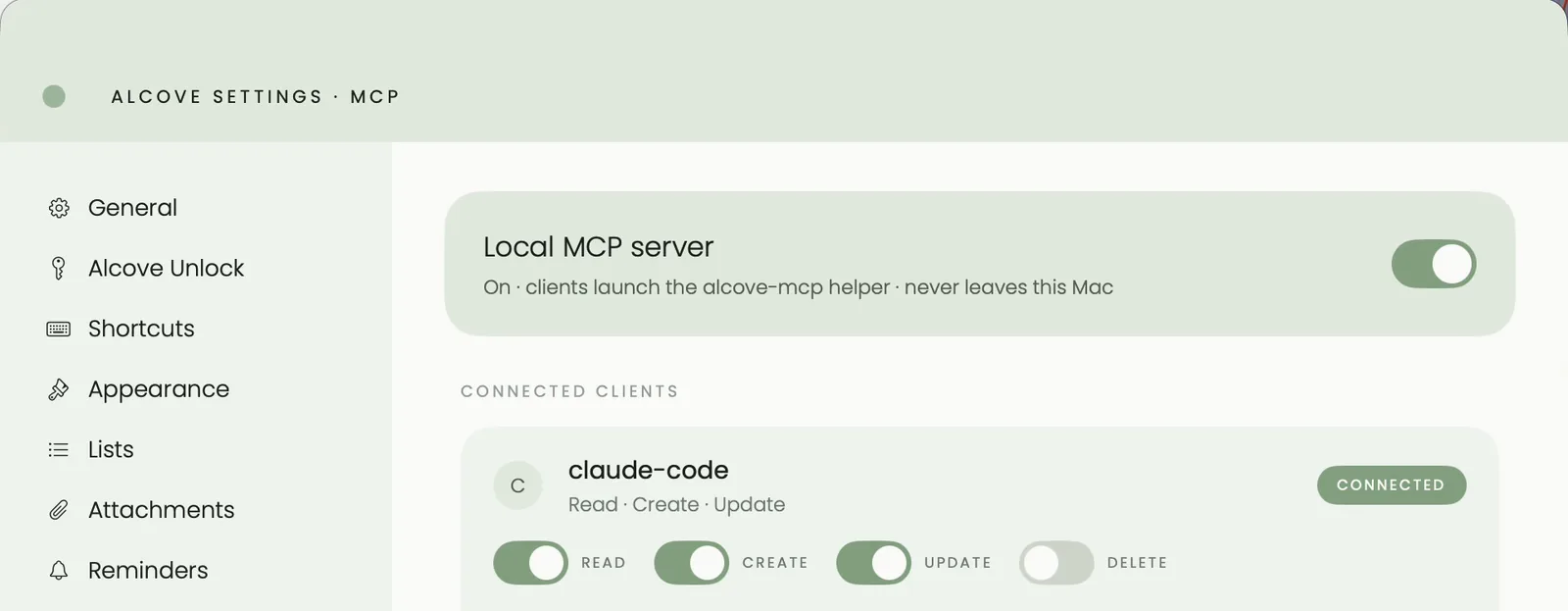
What can the assistant do?
That's up to you. Each assistant has four permissions you can switch on or off:
| Permission | Lets the assistant |
|---|---|
| Read | See your tasks, lists, tags and notes |
| Create | Add new tasks, lists, tags and notes |
| Update | Change tasks, finish them, move them between lists and reorder them |
| Delete | Remove tasks and other items |
Read only gives an assistant read access and nothing else, and Block refuses every request it makes. The list of tools under each assistant shows which permission each tool needs, so there are no surprises.
Can you see what the assistant did?
Yes. Every request is written to the activity log in Alcove's settings, with the time, the assistant's name and what happened. For example: "create_task · claude-code · Created task Prepare board deck".
Is it private?
The connection runs on your Mac, between Alcove and the assistant app. Nothing goes through an Alcove server, because there isn't one. What you allow an assistant to read goes to that assistant's app, which may send it to its provider as part of your conversation. That provider's privacy policy then applies, so only connect assistants you trust.
Ideas to try
- "Add 'Book the venue' to my Work list for Friday at 10."
- "What's due this week that's marked high priority?"
- "Move the unfinished tasks from today to tomorrow."
- "Give me a summary of my day."
Questions people ask
Does this work on iPhone or iPad?
No. The MCP server runs on the Mac only. Tasks your assistant adds on the Mac sync to your iPhone and iPad through iCloud as usual.
Can the assistant delete my tasks?
Only if you allow it. Delete is its own permission, separate from read, create and update, and you can leave it off.
Which assistants can connect?
Any assistant app that supports MCP servers, such as Claude's desktop app or Claude Code. Copy MCP config gives you the snippet to add.
Does Alcove send my tasks to an AI company?
Alcove doesn't. The connection runs on your Mac. When you let an assistant read something, the assistant's app receives it and may send it to its provider as part of your conversation, under that provider's privacy policy.