How to keep your to-do list in the Mac menu bar
Put your to-do list in a menu bar app like Alcove and it lives behind a small icon at the top of the screen, with today's count beside it. One click opens today's tasks over whatever you're doing, even a full-screen app, so you can tick something off and get straight back to work.
I built Alcove because I kept losing my to-do list behind other windows. The menu bar is the one place on a Mac that is always there, in every app and every Space, so that's where the list lives.
Why keep a to-do list in the menu bar?
A list you have to go and find is a list you stop checking. In the menu bar, the list is one click from anything you're doing, and the number beside the icon tells you how many tasks are due today without opening anything at all.
It also stays out of the way. The popup opens when you click the icon and closes when you click back into your work, so there's no window to manage, no Dock icon to hunt for and no app to switch to.
What can you do from the menu bar popup?
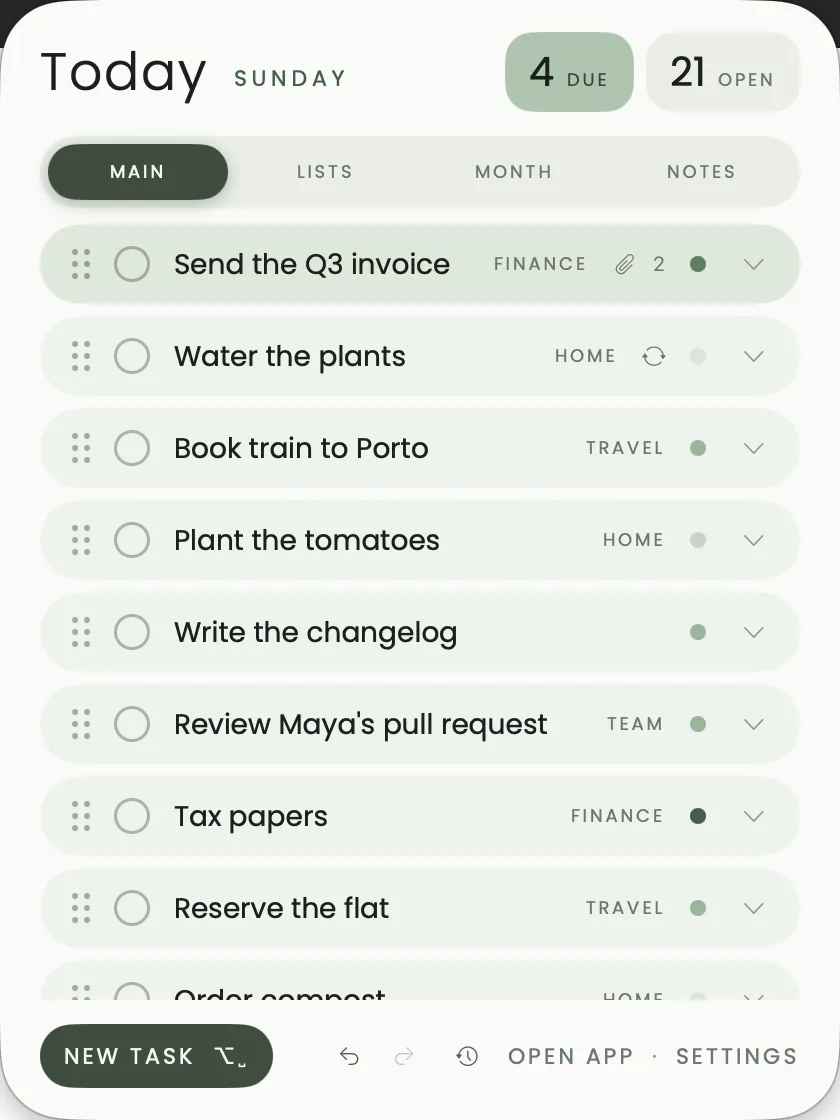
The popup has four tabs, so most of a day happens without opening the main window:
| Tab | What it shows | What you can do there |
|---|---|---|
| Main | Today's tasks | Tick tasks off, reorder them, expand one for its details |
| Lists | Every list and folder | Open a list, or pop it out into a floating window |
| Month | A calendar with dots on busy days | Pick a day to see what's due |
| Notes | Your notes | Read one, or open it to edit |
Along the bottom you'll find New task, undo and redo, the history of recent changes, and shortcuts to the main window and settings.
When you tick a repeating task, it rolls to its next date and a small message tells you when it's due again, with Undo right there if you ticked too soon.
How do you add a task without opening anything?
Press ⌥ Space in any app. A quick add panel appears in the middle of the screen, you type the task the way you'd say it, and Return saves it. Alcove reads the day, time, length, list, tag, priority and repeat out of the sentence as you type. The quick add guide has the full cheat sheet.
Can you keep one list on screen while you work?
Yes. In the popup's Lists tab, each list has a small window button. Click it and that list opens in a floating window that stays above your other apps, including full-screen ones.
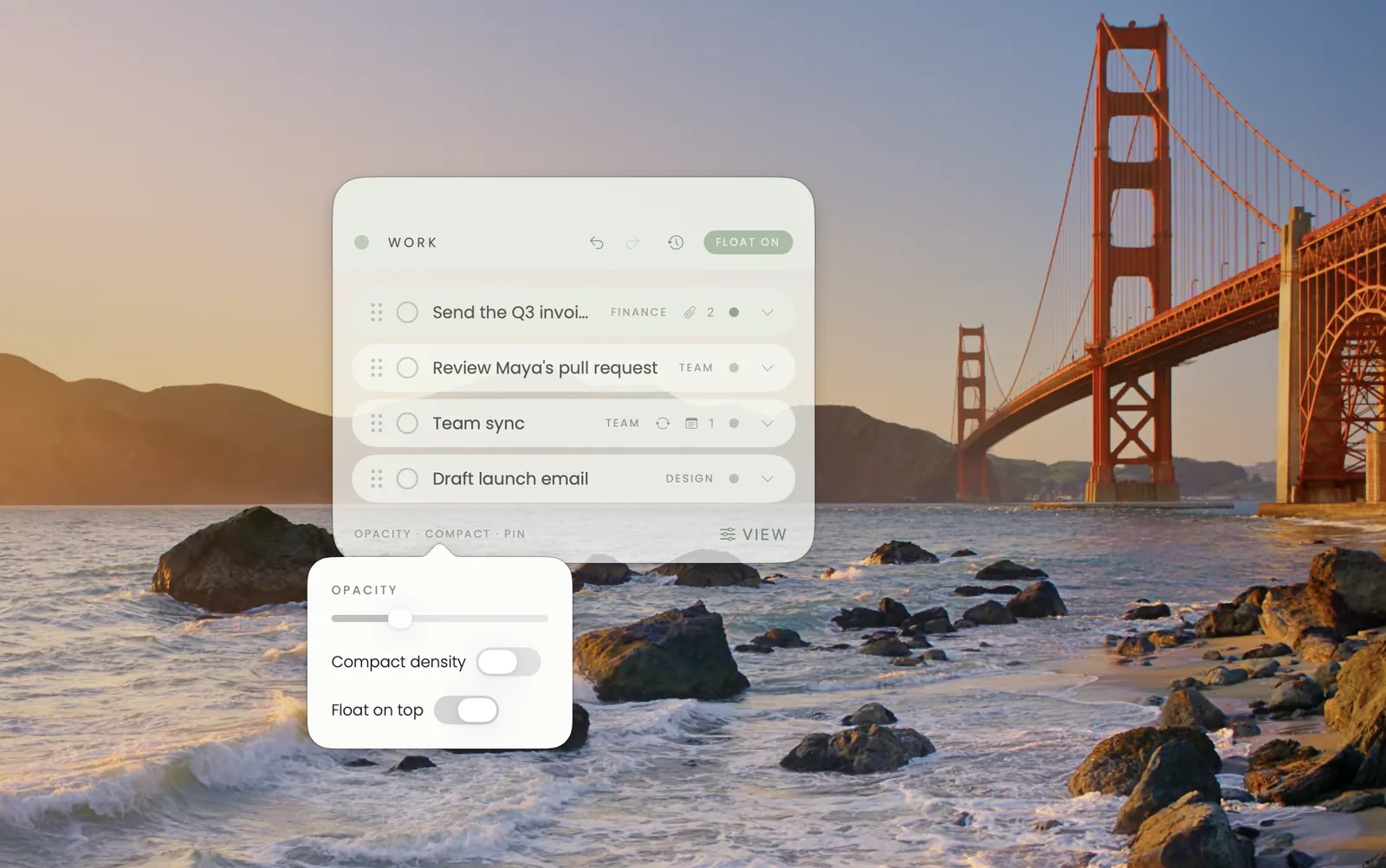
Below the list you'll find Opacity, Compact and Pin:
- Opacity turns the window see-through, so it can sit over your work without hiding it.
- Compact density fits more rows in less space.
- Float on top keeps it above everything, or lets it behave like a normal window.
I keep a floating Work list beside my editor on busy days and close it when I'm done.
Tips for a calm menu bar list
- Keep Today short. Today should be what you'll actually do today. Everything else can wait in its list or on a board.
- Keep some lists out of Today. A shopping list doesn't need to count towards your day. Lists can be kept out of Today and still appear in their own view.
- Let repeating tasks roll. Water the plants, pay the rent, the weekly sync: set them to repeat and they come back on their own.
- Use the count as a nudge. If the number next to the icon is more than a handful, it's a sign to move something to tomorrow.
Questions people ask
Does the menu bar popup work over full-screen apps?
Yes. The popup opens over full-screen apps, and a list you pop out into a floating window can stay on top of them too.
Can I hide the count and show only the icon?
Yes. In Alcove's settings you can show the icon only, the icon and today's count, or the icon and the total.
Is there an iPhone version?
Alcove has iPhone and iPad apps with the same tasks, notes and boards, kept in step through your own iCloud.
I can't see the Alcove icon in my menu bar. Where did it go?
When the menu bar is full, macOS can tuck icons out of sight. Removing icons you don't use makes room, and the icon comes back.