Keep notes and tasks together on Mac, iPhone and iPad
In Alcove, open a task and choose Link a note on the Mac or Attach a full note on iPhone and iPad, or open a note and choose Link to task (Link a task on iPhone and iPad). The note then shows under the task's Linked notes on every device, so meeting notes, a packing checklist or a budget table sit next to the work they belong to. Notes can hold checklists, pictures and tables that total themselves.
Most tasks come with words attached: the agenda for a meeting, the list of what to pack, the figures for a budget. Put the words in a notes app and the task in a to-do app and you spend the day switching between them. In Alcove: Tasks & Notes, notes and tasks live in the same app, and a note can be linked to the task it belongs to, on Mac, iPhone and iPad.
Why keep notes beside tasks
Three places where it helps:
- Meetings. The task "Team sync, Thursday 10:00" links to a note with the agenda. During the meeting you write in the note; afterwards each follow-up becomes a task of its own.
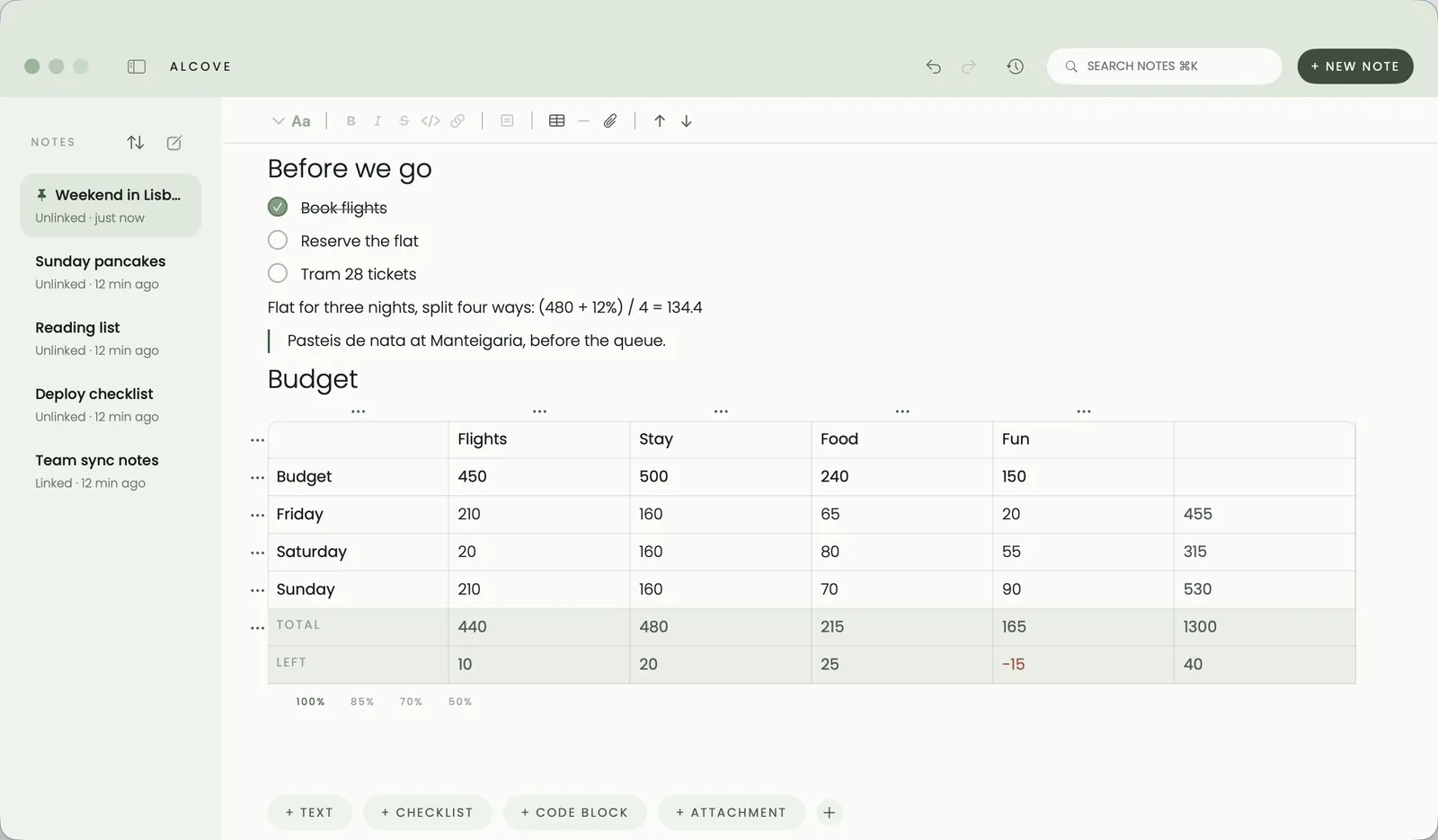
- Trips. The task "Pack for Lisbon" links to a note with the packing checklist and a budget table that adds itself up.
- Projects. The task "Write the proposal" links to the brief: the client's goals, links to send, the prices you agreed.
When the task comes round, the note is one click away rather than somewhere in another app.
Link a note to a task on the Mac
From the task
- Double-click a task, or click the arrow at the end of its row, to open its details. This works in the main window, the menu bar and floating lists.
- Under Linked notes, click Link a note… and choose one of your notes. The menu shows your most recently edited notes.
- The note now appears under Linked notes. Click it to open it in Notes, or hold ⌥ and click to open it in a window of its own that floats above your other apps. Right-click it to Unlink.
From the note
- Open the note in Notes.
- Under the title, click Link to task, type a few letters in Find a task, and pick it.
- The task appears as a chip under the note's title. Click the chip to jump to the task, or right-click it to Unlink. Once a note has a link, the button reads Change link, which moves the link to a different task.
In a floating note
A note floating in its own window has a Link to task pill at the bottom. It lists your open tasks, most recently changed first; pick one and the pill reads Linked. The same menu unlinks it again. See floating lists and notes on the Mac.
On iPhone and iPad
- From a task: open the task and tap Attach a full note. Choose New note to start one named after the task, or pick a note you already have. Linked notes are listed under Linked notes; tap one to open it, or press and hold to unlink it.
- From a note: under the title, tap Link a task and choose one. Linked tasks show as chips under the title; tap one to open the task, or press and hold to unlink it. With one link made, the button reads Link another task.
Links sync through your own iCloud along with everything else, so a note you link on the iPhone shows its task on the Mac a moment later.
A checklist in a note, or separate tasks?
A simple rule: steps without dates stay in the note, anything with a date or a reminder becomes a task. A packing list is a checklist. "Book the airport taxi for Friday 6am" is a task.
When a checklist item grows a date, you don't need to retype it. Right-click the item on the Mac, or press and hold it on iPhone and iPad, and choose Make this a task. Alcove creates a real task with the same words and the note's tags, files it where new tasks go, and links it to the note. The checkbox and the task then stay in step: tick either one and both are done, and a repeating task moves on to its next date as usual. On the Mac, an arrow beside the checkbox opens its task.
What a note can hold
Notes in Alcove are more than plain text:
- Headings: type
#and a space at the start of a line. - Checklists: type
[]and a space. - Code blocks, dividers and more from the
/menu. - Tables that total themselves, with budget rows. See notes that do the maths.
- Pictures and files, which from version 1.1 you can paste in and sync to every device. See attachments on every device.
Other ways to do it
- Apple Notes with Reminders. Both are free and built in. On the Mac you can share a note to Reminders, which makes a reminder with a link back to the note, and with Apple Intelligence, Reminders can suggest reminders from text in a note, such as action items from meeting notes. They stay two apps, so you switch between them.
- NotePlan. Notes, tasks and your calendar in one app, written in Markdown, with daily notes and links between notes. It runs on Mac, iPad, iPhone and the web, and costs $99 a year or $12 a month on NotePlan's site, after a free trial. If you think in daily pages and Markdown, it's built for you.
- Things 3. Each to-do opens into a page of its own, with room for notes (Markdown is supported) and a checklist. The notes live inside the to-do, which suits short context well.
Let an assistant link them
If you use an AI assistant such as Claude, Alcove's local MCP server on the Mac lets it link notes and tasks for you, with your permission. It has three tools for this: link_note_to_task, unlink_note_from_task and list_linked, all in version 1.0. Linking needs the update permission and reading links needs read, and you can switch each permission off. So you can say "link my Team sync notes to Thursday's team sync task" and it happens in the app. See connecting an AI assistant.
If you follow Getting Things Done, linked notes are a natural home for reference material: see GTD on Mac and iPhone.
Sources
Checked in October 2026:
- Add a reminder from another app on Mac, Apple Support
- NotePlan pricing and NotePlan on the App Store
- Things features, Cultured Code
Questions people ask
Can I link a note to a task?
Yes. On the Mac, open a task and choose Link a note under Linked notes, or open a note and click Link to task under its title. On iPhone and iPad, open a task and tap Attach a full note, or open a note and tap Link a task.
Can one note link to several tasks?
Yes, and one task can have several notes. On iPhone and iPad, a linked note offers Link another task. On the Mac, link the same note from each task's Link a note menu or from a floating note's Link to task pill; in the Mac note editor, Change link moves a note's single link to a different task.
Do linked notes sync to iPhone and iPad?
Yes. Links sync through your own iCloud along with the notes and tasks, so a link made on the Mac shows on your iPhone and iPad, and the other way round.
Should I use a note checklist or separate tasks?
Keep steps without dates as a checklist in the note, and make anything with a date, a time or a reminder a task. To turn a checklist item into a task, right-click it on the Mac (or press and hold on iPhone and iPad) and choose Make this a task; it stays linked to the note.
Can Apple Notes link to Reminders?
Partly. On the Mac you can share a note to Reminders, which makes a reminder with a link back to the note, and with Apple Intelligence, Reminders can suggest reminders from text such as meeting notes. They stay two separate apps.