Finish tasks from your iPhone Home Screen with widgets
Alcove has eight widgets. On the iPhone and iPad Home Screen, the list widgets show your tasks with a ring you tap to finish each one in place, without opening the app. Lock Screen widgets show today's count and what's coming up, and Control Center gets four controls, including one that finishes your next task.
A good widget answers a question before you've unlocked your phone: what's due today, what's next, is there anything I've forgotten? Alcove's widgets are built for that, and the ones that show tasks let you finish them right there.
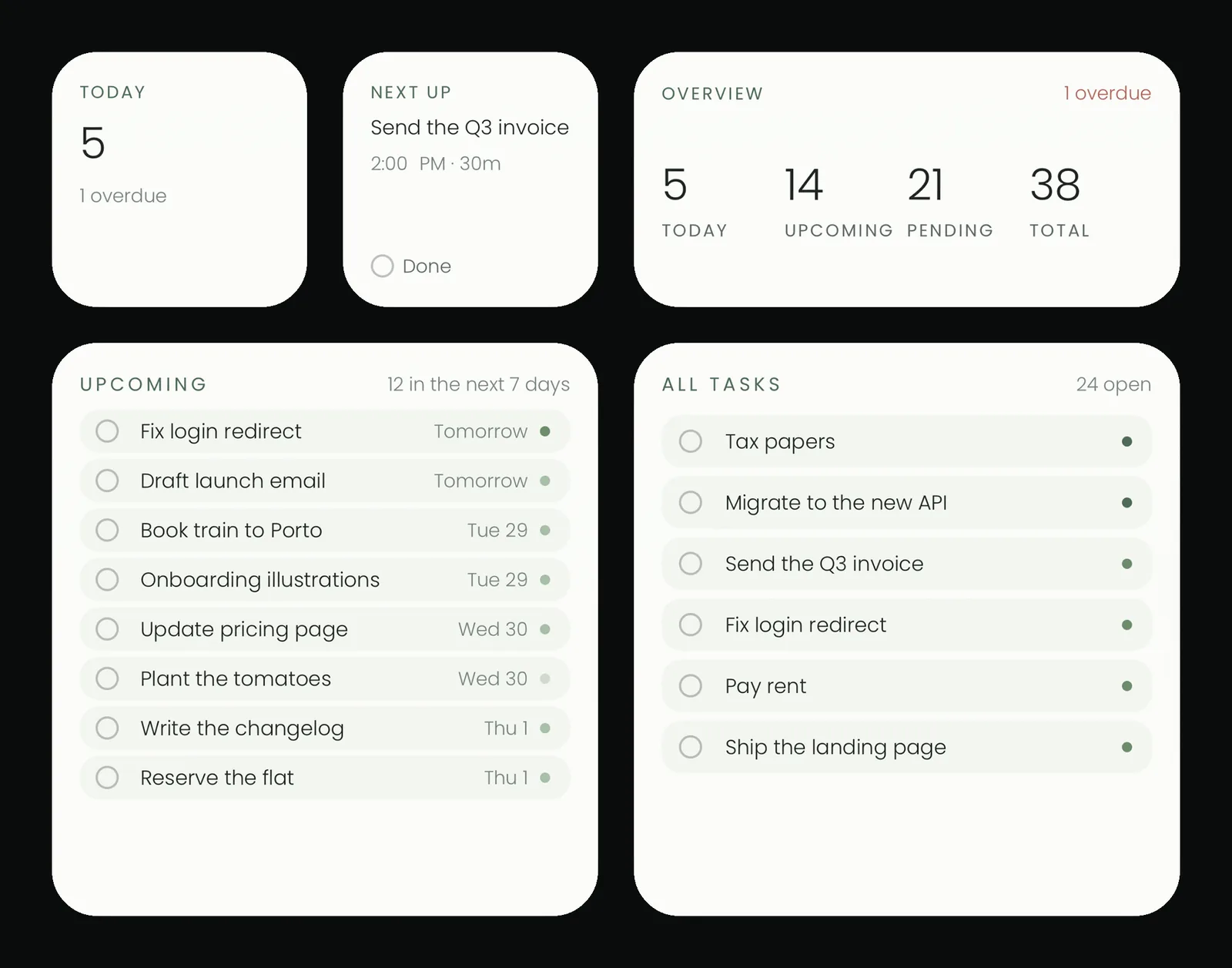
Which widgets does Alcove have?
| Widget | Home Screen sizes | What it shows | Tapping it |
|---|---|---|---|
| Overview | Small, medium | Due today, upcoming, pending and total | Opens Today |
| Today | Small | How many tasks are due today, and any overdue | Opens Today |
| Next up | Small | The next timed task, or the top of Today | The ring finishes it |
| Today's list | Medium, large, extra large on iPad | Today's tasks | Each ring finishes its task |
| Tasks | Medium, large, extra large on iPad | All tasks, or one list or folder you choose | Each ring finishes its task |
| Upcoming | Medium, large | What's due in the next seven days, day by day | Each ring finishes its task |
| Project | Small | One tag's open count, and how many are due today | Opens that tag |
| Quick add | Small | A shortcut to a new task | Opens quick add |
The rings are the point. Tap one and the task is done, the widget updates, and you never opened the app.
What can Alcove show on the Lock Screen?
Four widgets have Lock Screen versions:
- Overview: one figure in a circle (you choose due today, pending, upcoming or total), a three-line summary, or a line above the clock such as "5 today · 14 upcoming".
- Today: today's count in a circle, or today and open side by side.
- Upcoming: the next task, its day and how many are coming up this week.
- Quick add: a plus in a circle that opens a new task.
Lock Screen widgets show information and open Alcove when you tap them. They don't have buttons.
What are the Control Center controls?
On iOS 18 and later, Alcove adds four controls you can place in Control Center, on the Lock Screen's bottom corners or on the Action Button:
- Quick Add opens a new task.
- Quick Note opens a new note.
- Today shows how many tasks are due and opens Today.
- Finish Next Task ticks off the next task without opening anything.
How do you add an Alcove widget?
On iPhone and iPad:
- Touch and hold an empty part of the Home Screen until the icons jiggle.
- Tap Edit, then Add Widget.
- Search for Alcove, swipe to the widget and size you want, and tap Add Widget.
- To choose a list for the Tasks widget, touch and hold it and choose Edit Widget.
On the Mac, Control-click the desktop, choose Edit Widgets, and search for Alcove.
Widgets on the Mac desktop
The same widgets come to the Mac in small, medium and large sizes, for the desktop and Notification Center. The rings work there too, so a Today's list widget on the desktop becomes a to-do list you can tick without opening anything. For a list that follows you over other apps, see floating windows in the menu bar guide.
Questions people ask
Can I finish a task from a widget without opening Alcove?
Yes. On the Home Screen and the Mac desktop, the list widgets and Next up have a ring you tap to finish the task in place.
Can a widget show one particular list?
Yes. The Tasks widget shows all your tasks or one list or folder you choose. Touch and hold it and choose Edit Widget to pick one.
Which widgets work on the Lock Screen?
Overview, Today, Upcoming and Quick add. Lock Screen widgets show information and open Alcove when tapped. They don't have buttons.
Do the widgets work on the Mac?
Yes. The same widgets come in small, medium and large sizes for the Mac desktop and Notification Center.