Add a task from any app on your Mac with one shortcut
In Alcove, press Option-Space in any app to open quick add. Type the task in plain words, like "Call Sam friday 4pm 30m /Work #team", and Alcove picks out the day, time, how long it takes, the list and the tag as you type. Press Return and it's saved.
The fastest to-do list is the one you can add to without stopping what you're doing. That's what quick add is for: one shortcut, one sentence, done.
How do you open quick add?
Press ⌥ Space (Option-Space) from any app, even a full-screen one. A small panel appears in the middle of the screen with the cursor ready. Type, press Return, and you're back where you were.
If what you want to write down is a thought rather than a task, ⌥ ⌘ N opens a quick note instead.
Write it the way you'd say it
You don't fill in fields. You write a sentence, and Alcove turns the parts it recognises into chips underneath as you type:
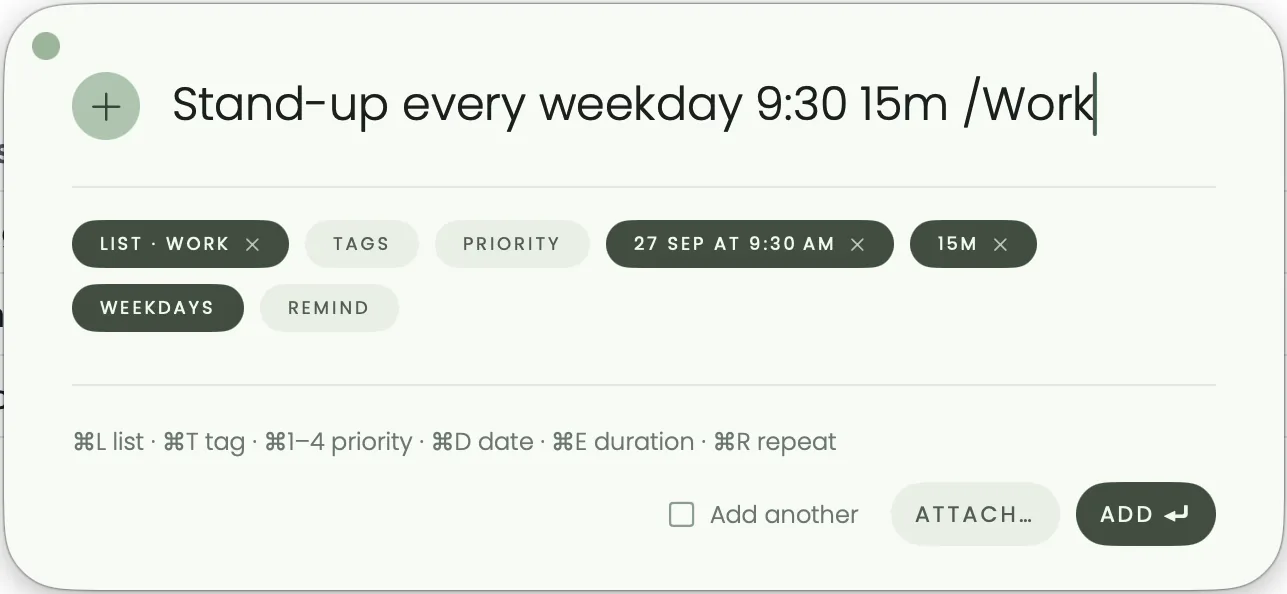
"Stand-up every weekday 9:30 15m /Work" becomes a task called Stand-up, in the Work list, at 9:30, taking 15 minutes, repeating every weekday. The words it used disappear from the title, so the task reads cleanly.
The quick add cheat sheet
| To set | Type | Examples |
|---|---|---|
| Day | A day word | today, tomorrow, tonight, friday, next week, next month |
| Time | A time | 4pm, 9:30 |
| How long | A number and m or h | 15m, 30m, 2h, 1 hour |
| List | / and the list name | /Work, /Home |
| Tag | # and the tag | #team, #finance |
| Priority | ! and a level | !low, !med, !high, !urgent, or !1 to !4 |
| Repeat | every and a rhythm | every day, every weekday, every monday, every 3 days, every other week, every tuesday and thursday |
A few sentences that work:
Pay rent every month !high /HomeWater the plants every 3 days #homeReview Maya's pull request tomorrow 11am 45m /Work #teamBook train to Porto next week /Travel
Change anything with a key
If Alcove read something differently from what you meant, you don't need to retype it. While the panel is open:
| Key | Does |
|---|---|
| ⌘ L | Pick the list |
| ⌘ T | Add a tag |
| ⌘ 1 to ⌘ 4 | Set the priority |
| ⌘ D | Pick the date |
| ⌘ E | Set how long it takes |
| ⌘ R | Set the repeat |
Tick Add another to keep the panel open for the next task, and use Attach to add a file.
Quick add on iPhone and iPad
The same words work in the new task sheet on iPhone and iPad. There are a few more ways in, too:
- Siri. Say "Add a task to Alcove". Every phrase needs the app's name, or Siri hands it to Apple's Reminders instead.
- Control Center. On iOS 18 and later, add Alcove's Quick Add control to Control Center, the Lock Screen or the Action Button.
- Widgets. The small Quick add widget opens the new task sheet from your Home Screen. The widgets guide covers the rest.
Questions people ask
Can I change the Option-Space shortcut?
Yes. Both the quick add shortcut and the quick note shortcut can be changed in Alcove's settings, under Shortcuts.
Does quick add work in full-screen apps?
Yes. The shortcut works in any app, including full-screen ones, and the panel appears over it.
Can I add several tasks in a row?
Tick Add another in the quick add panel and it stays open after each task, ready for the next one.
Does the same typing work on iPhone and iPad?
Yes. The new task sheet on iPhone and iPad reads the same words, so "friday 4pm /Work" fills in the day, time and list there too.