A personal kanban board for your tasks on Mac, iPhone and iPad
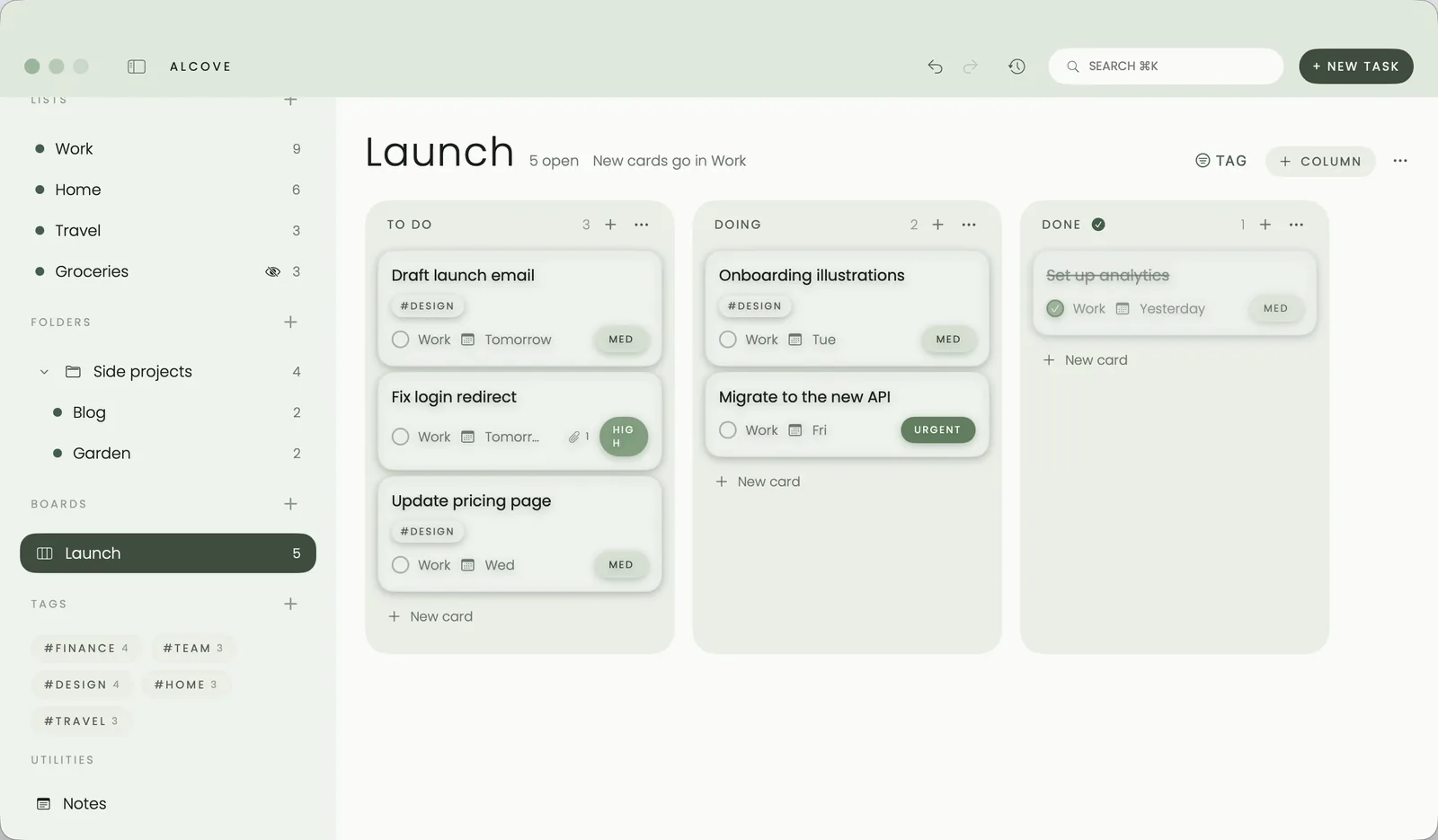
Create a board in Alcove, give it columns such as To do, Doing and Done, and drag cards between them. Every card is an ordinary task, so dropping one in Done finishes it everywhere, in its list and in Today. New cards land in the list you choose for the board.
A list is good at telling you what's next. A board is good at telling you where everything stands. For projects with a few moving parts, like a launch, a move or a side project, I find the board is the view I keep open.
Why use a kanban board for personal tasks?
Kanban is a simple idea: every piece of work is a card, and cards move left to right through columns as they progress. Seeing work in columns makes two things obvious that a list hides:
- What's stuck. A card that sits in Doing for a week is asking a question.
- How much is in flight. If Doing is longer than To do, it's time to finish something before starting anything new.
How do you set up a board in Alcove?
- In the sidebar, find Boards and add a new one. Give it a name, like Launch.
- Add the columns you need with + Column. To do, Doing and Done are a good start. You can add more, such as Waiting or Review.
- Choose which list new cards go into. It's shown under the board's name, for example "New cards go in Work".
How do you move work along?
Drag a card from one column to the next. When a card reaches Done, the task is finished, exactly as if you'd ticked it in its list, so it leaves Today and your counts go down.
Each card carries what matters at a glance: its tags, the list it belongs to, its date and its priority. Click a card and its details open in a panel beside it, or tick the ring on the card to finish it without dragging.
Because cards are real tasks, nothing on a board is ever orphaned. A card you add on the board still lives in a list, shows up in Today when it's due, and appears in your widgets and the menu bar like any other task.
Boards on iPhone and iPad
On iPad, the board fills the space beside the sidebar with every column in view, the same as on the Mac.
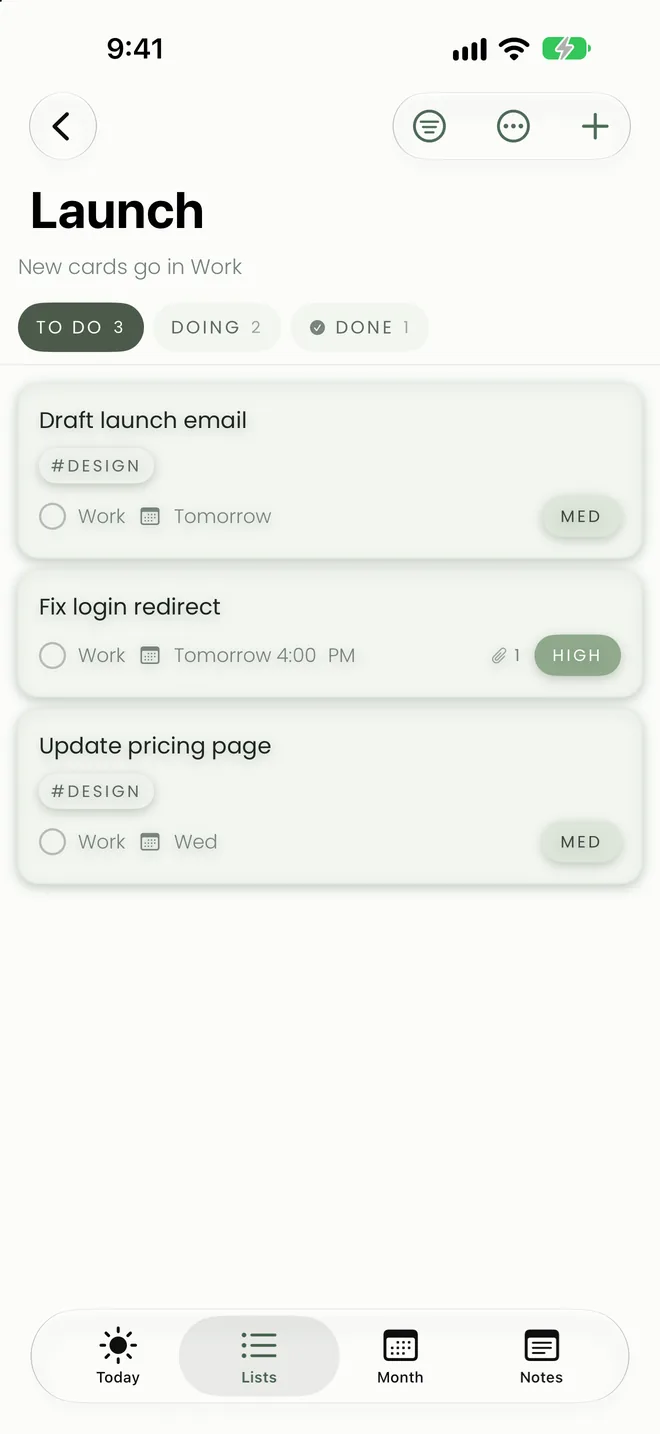
On iPhone, each column is a page. The column names sit along the top with a count beside each, and you swipe or tap a name to move between them.
Tips for a board that stays useful
- Keep Doing short. Two or three cards at a time is plenty for one person.
- Use tags for the kind of work. #design and #backend on cards make a busy column easy to scan.
- Give each board its own list. Pointing new cards at the project's list keeps the board and the list telling the same story.
- Let Done be the record. Finished cards are finished tasks, so Progress still counts them.
Questions people ask
Is a card on a board a separate thing from a task?
No. Every card is a task that lives in one of your lists, with its date, priority, tags and notes. The board is another way of looking at it.
What happens when I move a card to Done?
The task is finished, the same as ticking it in a list, so it drops out of Today and your list counts.
Where do new cards go?
Each board has a list that new cards go into, shown under the board's name, so a card added on the board still belongs somewhere.
Do boards work on iPhone and iPad?
Yes. On iPad the columns sit side by side next to the sidebar. On iPhone each column is its own page, and you swipe or tap a column's name to move between them.